
 Earlier in my series on

Leave a Comment:
146 comments

Hi!
I used to be at a .blogspot and yes, I figured out a way to verify my blog through Pinterest. However, I just changed to a .net. My .blogspot auto directs to my new .net. I am wondering if I should re-verify using my .net or keep it at a .blogspot. Pros, cons etc?
Thanks!
Ashley

For the purposes of getting people to your blog, the .blogspot address works fine, since Blogger redirects them. But if you’d like it to say .net after your name (perhaps it’s more professional looking?), I think you’d want to re-verify your blog after entering your new URL in the URL box on your profile page.
Reply
Love this! Thank you…I have a question, I’m lost when it gets to “enter the information that your host has given you”
My host is HostGator (my SIL does that for me) I’m just not certain what info. I need from the host. Sorry, I bet it’s obvious but I’m clueless… :0
Thanks~
Robin
Hi Robin, you’ll look in the welcome email HostGator sent you initially. It should have FTP access information like a username and password, and possibly a port number. If you don’t have it, try logging in to your account and checking the left hand sidebar on your account information page. And if all else fails, call HostGator and tell them what you need – it’s something they should be able to provide you in just a few minutes. Hope this helps!
Reply 
Just watched this and successfully verified my blog on Pinterest! Thank you so much for walking me through it!
Reply

the tute for blogger was perfect and actually worked this time….is there one for getting the pin it button to hover over pics in blogger? thanks so much!
Reply

Thank you so much for your awesome tutorial! I’m a new blogger and chose to start with a self-hosted WordPress site. It’s been quite a learning curve and one of my biggest “fears” was working with an FTP. Not only was I able to verify my pinterest account, but now I have no fear of Filezilla either! I’ll definitely be spending lots of time reviewing all your information. You’ve been a great help 🙂
Have an awesome day!

Thanks, Jeni! I just did this while following along with your video. Glad to have a nice little url instead of a globe in my profile.
Reply

Hi Jeni,
I have found the file wp-content under the file httpdocs.
However, when I drag and drop the file and after it says transfer file complete. I click verify on my Pinterest account and it says “your server responded with a status code 404 (file not found) We tried to visit http://www.thewanderfulltraveler.com/pinterest-c19e5.html.
Hmm…I’m really not sure what’s happening then. If you’re sure that the file went into the httpdocs folder (and not into a subfolder), that should have done it. Underneath the 1-2-3 steps on the “Verify your site” page, there’s an alternative method for verifying your site, I believe. See if you can walk through the other method. Sorry this isn’t working out for you!
Reply
I did it!!! Whew! Must have watched your video 10 times 🙂
You did a great job instructing someone like me…not so good with technology!
Thanks Bunches!
Robin

Just found your blog! I can’t wait to read more of your posts.
I can personally vouch for doing this. I did it a few weeks ago just out of curiousity and my followers doubled relatively quickly. I am starting to notice a lot more traffic as well.
Reply
Hi Jen!
I feel like such an idiot… I don’t know what I’m doing wrong. I’ve entered in the host domain name in the Site Manager: http://www.bluehost.com. Have changed the setting to Normal as you suggested. Entered in the username and password that Bluehost assigned to me, and it just keeps giving me a message on FileZilla that says: Could not connect to server.
Am I doing something wrong?
Thanks so much and many blessings!
Reply Hi Tehila, in the domain name, you should have http://www.womenabiding.com. It needs the “host name” of your specific account. Let me know if you’re still having trouble – hope this helps!
Reply Thanks so much, Jen. I simply could not get this to work, so I eventually called Bluehost, and they helped me. Turns out my port number, the one that was automatically put in there when I downloaded FileZilla was incorrect.
So it wasn’t technically my fault that I was such a slow coach :-)… Whew!
Blessings always…
Reply
Hi Jeni. Thanks so much for the tutorial. I’m ashamed to say that it took me a couple of hours, but I was finally successful. I had several FTP accounts to sort through, and was also a bit uncertain about the information to enter in the Site Manager. But I learned lots along the way!
Reply Hi Brenda, congrats on getting that done! Sorry I wasn’t a little more clear on that in the video. I’m going to add a little note in the post that tells people that the info for “host” is your URL. That’s caused a couple of other folks confusion as well. Sometimes it’s hard for me to look at things with fresh eyes (as someone who’s never seen it before), since I use tools like FileZilla every day. But 10 points to you for pressing on and getting it done! 🙂
Reply
Should probably note that this option is not available on the “new look” yet. You need to revert to the “old look”, complete the verification then switch back to the “new look”.
Reply
What is the old versus new look? I’ve been trying to drag over the pinterest download but it won’t drag over into the public_html. I’ll have to wait for my techy hubby I guess!
Reply
Just wanted to thank you for this helpful tutorial. I’m still a newbie and am just breaking into more of the specifics behind my blog. I verified my blog easily, thanks to you! I will be sure to share it. Hope this finds you well.
Reply
Hi Jeni. Thank you for the tutorial. I’m trying to work through your video for verifying my blog on Pinterest and I’m stumped near the beginning. I’m using Dreamhost.com and I’m not sure how to find the FTP information. I am so new to all of this and maybe I’m just not looking in the right place. Can you help? Thank you.
Reply Hi Jeni,
OK. I’m back. I put this on hold for a week or so until I had some time to address it. I’ve entered my host, username, and password but when I click on connect I get the message of Error: Connection timed out/Error: Could not connect to server.
Thank you, Lori
I’m sorry to bother you with this but I’ve tried it several times and receive the same error message. Any ideas?
Reply Well, error messages are no good! If you try again tomorrow and still can’t connect, you might try logging in to your Dreamhost C-panel and locate the File Manager. You can navigate to the same directory there (public_html or the equivalent) and upload the Pinterest file to that folder. It might save you some headaches. Let me know if you can’t get this worked out and I’ll look into it for you. 🙂
Reply
Hi Kami, Make sure that when your Pinterest HTML file appears, it’s showing up in the same folder with “wp-admin,” “wp-content” and “wp-includes.” I’ve had a few people accidentally drop the file into those sub-folders. And if all else fails, I’d call your host’s customer support line – this is something they should be able to walk you through in less than 5 minutes. Hope this helps!
Reply


Thanks, Jeni! This is a great tutorial. Tip: I was able to upload the Pinterest file via my Hostgator cpanel rather than having to use an FTP client. I actually tried the FTP route first and couldn’t get it to work, and then I saw a file management area in my cpanel with an “Upload” button. Worked like a charm.
Reply


Hi Jeni
Loved the video – super easy to follow.
I’ve done this already but I get very little traffic from Pinterest.
Most of my traffic is via the bots then twitter and a small amount from Facebook.
What sort of traffic do you get from Pinterest?
Reply My Pinterest traffic goes in cycles: when I first release a new post, the traffic from Pinterest will spike and then wane for awhile…until people rediscover a post (usually what I’ve put in my sidebar) and pin it, which starts a new cycle of visitors and more pins. I haven’t written a post in the last 45 days or so (too busy!) and my Pinterest traffic right now is between 700-1,000 visits per day. As a service based business, I think it’s worth it to spend the extra time writing high quality, pinnable content that will keep people coming to check it out. 95% of my clients have found me through Pinterest, and most start out with blog coaching and do designs later. The other 5% or so are from word of mouth referrals. And *that’s* why I love Pinterest. 🙂
Reply “my Pinterest traffic right now is between 700-1,000 visits per day”
Think I’d settle for that Jeni and if 95% of your clients are from Pinterest it obviously works for you.
Looks like I need to work harder on Pinterest.
Reply
Thank you so much! I just verified our Pinterest account too! You made this so easy.
Reply
When I go to find the Public_html on the remote site, it isnt there? I host with Dreamhost and have installed the wordpress and that is what I blog with – I am just not sure what I haven’t done right yet?
Reply Hi Lindsay, different hosts have different file structures. What you want to find is the directory that has these folders in it: wp-admin, wp-content, and wp-includes. You’ll put Pinterest’s HTML verification file in the same directory as those folders (but not inside the folders – just out beside them). Hope this helps!
Reply


Jeni: I just did this tutorial and it was very easy to follow. Thanks.
However, when I got to the last step (clicking the verify website button on Pinterest) I didn’t get the confirmation message you showed in your video.
I can see the file on my server in Filezilla, so not sure what I’m doing wrong. Any advice?
Reply Hi Shana,
Two possibilities here: one, that perhaps the file isn’t in the right directory on your servers. Is it in the same folder with wp-content, wp-admin and wp-includes? This can vary from hosting company to hosting company, so you might call your host and have them walk you through it. The other possibility is that it actually was verified but just didn’t show you the confirmation. If that’s the case, you could look on your Pinterest home page next to your profile photo and see if the URL for your site is there. If so, you’re good to go. 🙂
Hope this helps!
Jeni

Hi there,
I appreciated your video however I have two WordPress websites that I’m wanting to verify with Pinterest and so far have had no luck in doing so. We are currently using Aptana for FTP on our main business website: http://houstonscustomframing.com.
I did download Filezilla after seeing your video and followed your instructions but had no luck there either.
Our other site is: http://fundamentalsoftransformation.com….not live yet.
Any suggestions would be greatly appreciated!
Thanks!
Thomas

Hi, thanks for your response. Yes, both of our websites are WordPress sites.
In the Aptana FTP program I couldn’t seem to find the exact place to place the code. In Filezilla it seemed like I put it in the right place but nothing happened.
Here are my two Pinterest profiles:
This first one is for our main business
http://pinterest.com/tmhouston57/boards
This one is for a site we are setting up now:
https://pinterest.com/sparkyfun57/


Thank you very much! I’f just started my blog today and I am a Pinterest fan so realy needed to put these two together!
My next project is placing the blogs I follow on my blog! Like Yours! And sharing with everybody how my “Blog-Puzzle” was solved thanks to the help from others!
Hannelore
Reply
Thank you so much, Jeni! This video was incredibly useful. I’ve been wanting to convert my Pinterest account from personal to business but I’ve been procrastinating for weeks thinking that the process was just too darn tedious. Thanks for making the verification process that much easier.
Reply
Thanks SO much for such a clear, detailed tutorial. I just walked through all the steps with success. I look forward to checking out more of your great site!
Reply

Thank you so much for this post. I was completely lost trying to verify my account on Pinterest. This video is the best!
http://www.JewellDavisWebsiteServices.com

Your video was a big help. I hit a road block because for some reason I wasn’t able to drag and drop. Then I tried to use the manual option and that didn’t work either.
I ended up logging onto my host and uploading the file. I initially got an error message when I tried to verify, so I just got up and walked away from the computer. When I came back Pinterest said that my site was verified lol. Thanks again for the awesome video!
This helped me to notice that my files need to be cleaned up because its a jumbled confusing mess back there.

Heya great website! Does running a blog like this take a great deal of work?
I have no expertise in coding however I was hoping to start my
own blog soon. Anyhow, should you have any recommendations or
tips for new blog owners please share. I understand this is off topic however I
just needed to ask. Thanks!
Hi Bernard, if you’re just getting started, I highly recommend Amy Lynn Andrews’ site, Blogging with Amy. She does a great job of breaking things down into manageable pieces for beginning bloggers. Hope this helps!
Reply
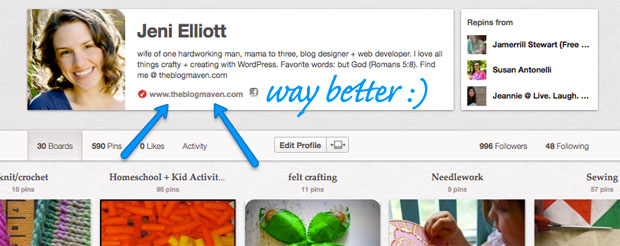
Hi Marisa, – yep, you’re verified. Pinterest has made a few design changes since I created this tutorial, but just as long as your URL is showing up in your profile, you’re verified!
Reply

Jeni
Ooooh boy! What a plethora of information. Where do I start? Anyway, I have booked marked your site and I’m going to be coming back often as I can use all the useful assistance I can find. The one thing too that caught my eye is my WP hosting company. I am currently using a “big box” company and I’m not very happy with them. So I’m going to look at WP Engine. Thanks again.

I already had Filezilla on my computer and forgot I could just upload it as you said. I was focused on getting it in there through the dashboard. Thanks!
Reply
Ohh Nice i am having word-press blog and not aware of ftp .Is there any plugin to verify our site in word-press.
Reply wordpress Plugin for Pinterest verification .Hope this helps others http://wordpress.org/plugins/pinterest-verify-meta-tag/
Reply
Hi, I’m using Register.com to host my website, and the free version of WordPress.com. I’m confused because in the video you say that it won’t work for WordPress, but the printed instructions look pretty similar (at least the first few steps). Anyway, this is the info I was able to find from Register.com:
Your FTP Credentials Are as Follows:
Host/Server–This is your Domain name (e.g. yourdomain.com).
Note: If your domain name is not using our server’s IP address or has not yet propagated, you must use ftp2.megaftpservers.com as the Host/Server.
Username–Exampledomainname.com (Enter the actual name of your domain name.)
Password–Enter the password associated with your hosting account. If you are unsure what your hosting password is, you can change it by logging into your Register.com account manager and clicking your hosting account link below your domain name.
Port– FTP programs may ask you for a port number. Your port number is 21.
Folder–Some programs (such as Dreamweaver) ask for the folder you are uploading your website to – yours is /public.
So I’m confused about what to use as the host/server. I’ve tried using my website, and it won’t connect. I’ve tried using ftp2.megaftpservers.com and it connects but doesn’t like the password I’m using. I’m confused as to which login name/password to use – the one that logs into my Register.com account? The one the logs into my WordPress.com account? Any help would be appreciated! Thanks!
Hi Jennifer,
Thanks for your note! I’m not familiar with the way Register.com does hosting – I wasn’t aware that they did anything besides domain registration, in fact. I think the best thing would be to call their customer service and ask them to walk you through setting up FTP. Sorry to not be of more help!
Jeni
Reply I think that may be where I’m getting confused. Register.com is where I registered my domain, but I changed the DNS, so it’s now pointing to wordpress.com. So does that mean that WordPress is “hosting” my blog?
Reply Okay, yes – that means your blog is at WordPress.com, not self-hosted. In that case, you can use this handy tutorial to verify your site with the “meta tag” option. Hope this helps!
Reply

Wow. I didn’t realize that by downloading Firezilla, I was somehow giving permission for many of the settings on my computer to change (search, etc.). Ugh.
Reply

Hi Ranya,
Even if it doesn’t look like it verified properly, sometimes Pinterest just throws an error. Check and see if you have the little globe and URL right there in your profile. If so, then you’re verified!
Reply

Hi Jeni,
Great article and very helpfu! Thank you for posting it.
You mention right clicking to remove the pinterest file after verification is successful, but there is no right click in mac computers. Any ideas on how I can delete the file from my server on my mac?
Hi RG, you should also be able to just select the file and hit “delete.” I have a Mac, but I use a mouse or the trackpad on my MacbookPro that allows me to right click. 🙂 But if you can’t get it off for some reason, that file should be fine just to sit there.
Reply


Hello,
This was a great post, thank you for sharing. I have a “managed” WordPress site on GoDaddy and made it successfully to the step where I went to verify my website but am still getting “Trouble verifying your domain. Please try again later.” I got the “directory listing successful” when I moved the Pinterest file. It’s not in a sub folder. I’m thinking it’s one of those little Pinterest errors because I see my domain name in my profile however I do not have a check mark (or globe) which I believe is the key to actually being verified. Any other thoughts on what may be causing the verification to not occur? Thanks!
Hi Cheryl, I’m thinking it’s just an error with Pinterest; I’ve had that happen myself occasionally, but the main idea is for your domain name to show up in your profile. As long as that’s there, you’re good!
Reply


Amazing tutorial and tips!! Your site is super helpful and a great resource! Thank you so much!!!
Reply
Hello,
I am trying to follow your video, and all the info gathered in comments. It’s way beyond me. Feel like I’m the exact opposite of a ‘Biz Maven.’
I think I’m self hosted, but still had a place in WP to enter the meta thingy in tools so I did. Pinterest couldn’t verify me, but my blog is linked to in the top of my profile. Who can I pay to sort this all out? Your video seems great. My ability to fit info in not so much.
Thanks for listening!
Holly
Hi Holly,
Sorry you’ve been having trouble! You can have a link to your blog from your profile even without verifying – the verification gets you the little red check mark next to your URL. There’s a guy I’ve been recommending named Jeremy Holden who does basic VA (virtual assistant) work, and he has all the technical skills required to verify your site with Pinterest. He’d be a great person to hire…but please let me know if he doesn’t respond or if he’s unable to work you in to his schedule. I want to make sure you’re taken care of.
Reply Thank you Jeni. I will try Jeremy or the wonderful guy who helped me set up my blog. Keeping up with social media and proper blogging can be nightmarish for ordinary folks.
Reply BTW, how do you get my most recent post to share in my comment? That’s beyond brilliant. I’ve never seen that before. Can Jeremy make that happen too?
Reply Actually, I didn’t have the option to add the Premium version – just the Comment Luv? Not sure what the difference is.
Reply 

Hi Yash, all the web hosts have different settings for FTP access, so it sounds like you need to call GoDaddy and ask them for the specific info you need to put there. They may also have info for that on their knowledge base in their support section.
Reply
I have tried everything, and no matter what I do FileZilla is giving me the error “connection timeout” and “failed to retrieve directory listing”. I have bluehost and I tried putting my domain name as the host and when that didn’t work, I contacted bluehost support and they gave me a bunch of numbers to put in as the host, but that didn’t work either. Help please! What am I doing wrong?
Reply Hi Meghan, I’m not sure what’s going on with your verification. When all else fails, contact Pinterest via their support page – I’ve always had a good experience with their help desk in the past. Sorry to not be able to help you with specifics here!
Reply


“Since I verified my blog with Pinterest 24 hours ago, I’ve had eight (8) new visitors…” I think that’s a great idea too. Not only for traffic but for other reasons too. I think that taking the time to verify your site adds an element of credibility. With so many fake accounts, you need a way to stand out on Pinterest as a good, upstanding business – some way to make your product/service look special. It’s not much, but all the little things add up.
Reply
Thank you for sharing FileZilla… It doesn’t seem to work on my blog though. (It says connection timed out?) Does it work on not self-hosted blogs like mine?
xx, Roxanne
http://www.themagicalcanopy.wordpress.com
Hi Roxanne! Sorry to say, as a wordpress.com blogger (not self-hosted), you don’t have access to the backend files on your site. If you decide to move to self-hosted, you’ll have all that access, plus access to plugins that will extend what your site can “do.” Thanks for reaching out here! xo
Reply
Thank you so much! This was exactly what I needed! Just learning all of this!
Reply
Hi jeni, thanks a lot for this tutorial! However, I’m having some problems, could you please help me? I did the steps like you instructed (I didn’t use Filezille but uploaded the pinterest file through my Cpanel to the public.html folder), but when I want to confirm it I get this message “Looks as if we had trouble connecting to your website. Please try again later. ” and when I click ok on that I get “You’re over your limit for website verifications. Try again later. “. Tried later, after about half an hour, got the same message. I’m confused and clueless, could you please help? Thank you!
Reply Hi Stella,
Have you checked your Pinterest profile yet? I believe Pinterest has discontinued the need for verification (this article is from awhile back). Just make sure you can see your website’s URL in your profile and that you can click it to get to your website. That should be all you need!
Reply Hi Jeni,
I see my website written out in letters in my profile, but in the analytics site it offers the option to confirm my website, when I click on it, it doesn’t process it or go any further just closes the box, but no change. And my analytics aren’t displayed. 🙁
Reply Your best bet, then, is to contact Pinterest’s help desk. I’ve always found them to be helpful in the past. Hope this helps point you in the right direction, Stella!
Reply Thanks Jeni, I contacted customer service (they were incredibly helpful and quick to respond) and they had to manually confirm it for whatever reason, but now i’s fine. Thank you! 🙂
Reply
Thank you so much for this! I was having the absolute worst time trying to figure this out and no one had step by step instructions on what to do. This made it so so simple and I cannot thank you enough!
Reply

I don’t have a good answer for you here, Tara – try Pinterest’s support desk. Every time I’ve contacted them in the past, they’ve always been really helpful!
Reply
Thanks for the tips currently working on verifying my website now!
Reply
I remember it being super easy like this. But they seem to have made a new method. Can’t see the verification now after I push finish.
Reply
Thank you so much for such a nice article. I have been trying so hard to confirm the website on Pinterest. My site is http://www.thedeliciouscrescent.com and my Pinterest is at https://www.pinterest.com/TDCrescent/
I followed the filezilla FTP and it dropped the pinterest file among the files. Only thing, inside filezilla where it says Remote site: it is blank, there is no public_html written there. However when I logged into bluehost cpanel and checked in public_html the pinterest file was there. I have tried to upload the file directly into the cpanel public_html. But either way it has not worked for me. And I got this message from Pinterest settings both times as below:
Oops!
Looks like we had trouble connecting to your website. Please try again later.
I tried contacting Pinterest through some online feature. But no response. I dont know how to proceed. I feel bad that the number of times a pin is pinned from my site does not get pooled together. Meaning even if it has been pinned several times, it does not show the number of times it has been pinned. And I think that if my website gets confirmed it will fix that problem. I am not knowing who and how to contact someone at Pinterest. Any help or guidance will be much appreciated. Thanks so much for a wonderful video. I learned something new – that is Filezilla.
Reply Hi Roxana,
Pinterest has changed quite a few things since I posted this tutorial; if you’re not able to verify, I wouldn’t worry about it. When Pinterest first started, they wouldn’t allow you to link from your profile to your site unless you were verified. But since your profile links to your site, it’s unnecessary. Keep moving forward!
Reply 

I’m trying to verify my blog, I tried to follow your instructions but I can’t download HTML file, I clicked to “Download this file” and nothing happened. Then I use “inspect element” of Chrome, I saw that this is wrapped by an tag but without `href` attribute, Could you please help me out?
Reply
Hai I’m having the same problem. Pinterest seems to be experiencing a lot of issues as of late. I’m assuming that’s all it is and nothing we’re doing wrong on our part. I tried clearing my cache and using a different browser. Same issue. I’m going to write into Pinterest support and see if they can just manually confirm it for me. As much as I dislike not being able to do things on my own, this seems to the be the quickest and simplest solution at the time.
Jenni, thank you for your helpful article, though. It’s too bad that there are so many other issues affecting what should be a simple process.
Reply

Hi jeni…
looks like sadly wordpress.com websites can’t verify to pinterest 🙁
i’ve been searching & trying for about an hour now and even the url you kindly provided (that leads to wordpress support) talks about verifying the (.org)
but thanks anyway 🙂
glad that it led me to your blog 😉

I was unable to verify my WP account. I’ve seen a few comments that say WP.com can’t be varied, which is odd given that WP.com is the standard for blogging and websites now.
But I have another question. Your Pinterest profile looks nothing like mine. Yours has a rectangle banner with your image on the left. Mine has a circular picture of me on the right with my description in bog letters on the left. Mine looks horrible compared to yours but I can’t find any tutorials or information on how to change mine. Any suggestions?
Reply I was actually able to verify using a Pinterest Verify Plugin, so that’s done. I am verified but it changed nothing. My URL only shows up because I typed it in the description box.
I am still interested in how you got the profile banner. It’s gorgeous and I’d love to create one.
Reply They’ve just changed the design of it, KaLynn – they do that every year or so. 🙂 If you don’t love it right now, don’t worry — it’ll change soon. 😉
Reply
